One garment. A new setting.
Explore a coastal editorial setting from a garment reference.
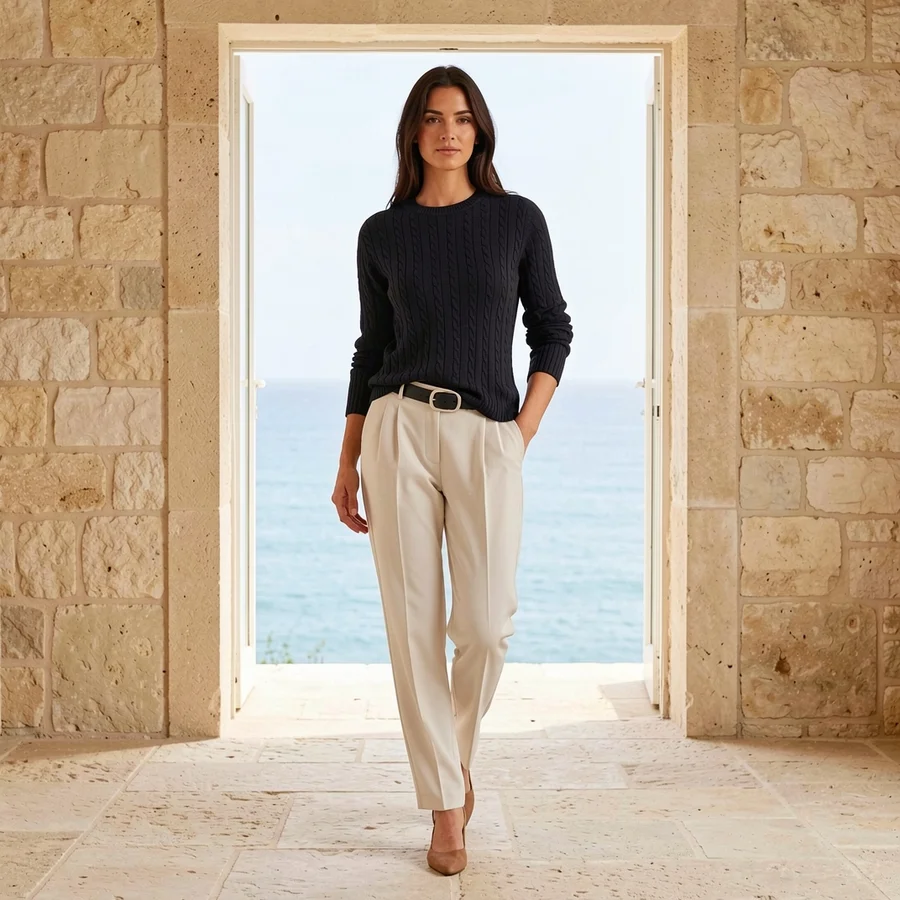
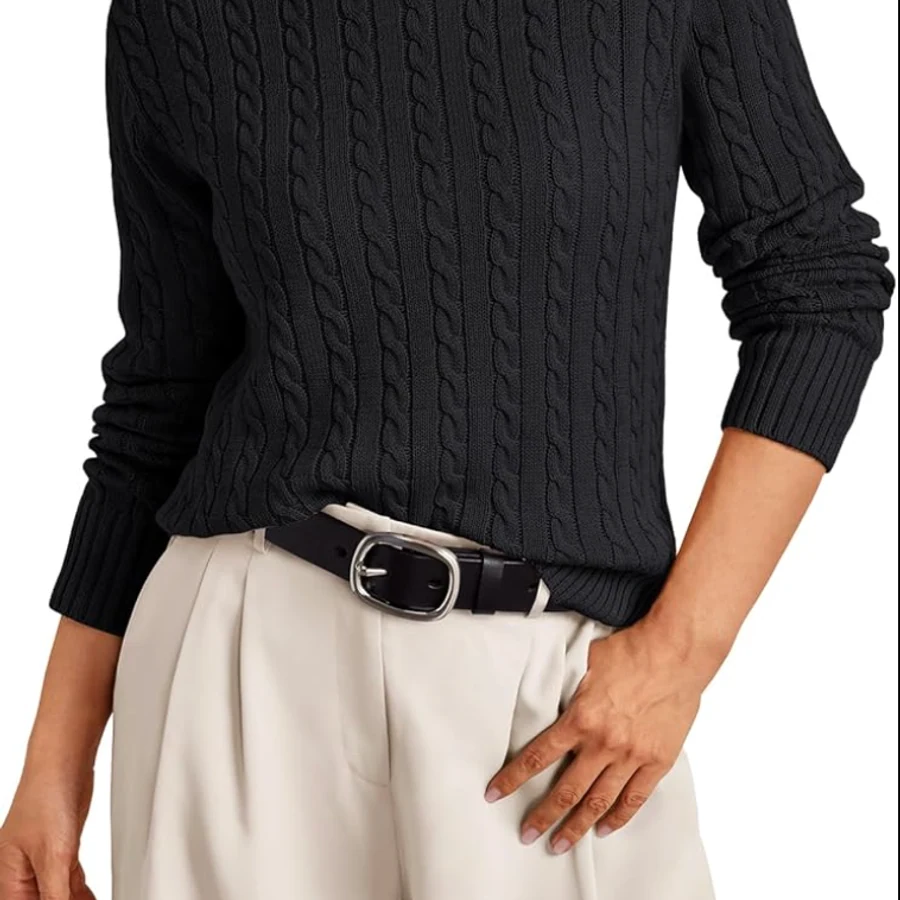
Swipe the image to browse examples · Use the slider to compare.
Upload a product photo and explore new settings, styles, and campaign ideas. Refine your favorite, write the caption, and bring it to your team for review.
Free during early access No credit card required
Fashion editorial · 1 / 3
Explore a coastal editorial setting from a garment reference.
Swipe the image to browse examples · Use the slider to compare.
Explore product campaigns and fashion editorials. Start from your own reference or a written idea, then refine the light, setting, and details.
Include the subject, action, setting, camera angle, lighting, style, and colors.
Select square, portrait, or landscape to match where the visual will be used.
Refine the result, add positioned text, then download it, save it to your image library, or assign it to content.
Add one clear primary photo, optionally include alternate views, then confirm whether it is a product, watch, jewelry item, small object, or garment.
Start with a category-compatible campaign recipe such as Luxury, Lifestyle, Ecommerce, Editorial, or Flat lay.
Review the preserved product, refine it, then save the final image for reuse or assign it directly to compatible content.
Show a garment on a model, mannequin, ghost form, or hanger while preserving its construction and details.
Name the exact garment and choose a preset or custom color while preserving the scene, model, logos, stitching, folds, texture, and accessories.
Refine the result, add branded text, and keep only the final images you intentionally save or assign.
Follow a draft from the first idea to its place on your calendar. Try each step below.
Interactive walkthrough · Select a step to explore. This example does not create or save content.
Start in Create with one post idea. Write it yourself or use AI for a first draft, then edit the result in your own voice.
What you can doEditable caption · Hashtags · Alt text
Start on your own. Add your team when you’re ready.
Find your next angle, catch missing details, and keep useful work ready to reuse.
Keep your next idea close.
Find fresh angles in Idea Lab. Keep your tone and content themes consistent with Content Playbook.
What you leave withA direction for your next post
Give your draft a final check.
Spot missing media, incomplete captions, and weak alt text before you send a draft for review.
What you leave withMissing details made visible
Keep useful assets within reach.
Find saved drafts and images in your libraries. Reuse your visuals and plan approved posts on the calendar.
What you leave withA library to build on
Save your colors, fonts, voice, and audience once. Use those shared defaults for captions, campaign imagery, and text on images.
One workspace. Shared creative direction.Example captionA little intention. A better everyday. Discover pieces made to feel at home.
A solo routine, a shared review queue, or a workspace for every client. Choose the setup that matches your day.
Capture a post idea, shape the caption, and save a visual you can return to when it’s time to plan.
An editor prepares the post. A reviewer requests changes or approves it. The team plans what goes out next.
Move between client workspaces with the right brand direction, saved assets, and invited teammates in each.
Keep feedback with the draft. Editors know what to change; reviewers know what comes next.
Invite teammates by email and set their role before they join.
Keep each brand’s content and collaborators in its own workspace.
Owners and Admins manage. Editors create. Viewers have read-only access.
Keep the change request, reviewer, and timestamp with the draft.
Caption and product visual are ready for review.
Submitted for review“Use the approved product photo and shorten the opening line.”Changes requested · Returned to Draft
Visual replaced. Opening line updated. Ready for another look.
Resubmitted for reviewThe essentials on getting started, creating with AI, and working together.
Yes. During early access, you can create an account and use the current daily allowances without a credit card. Paid plans with higher generation limits may be introduced in the future. Pricing and plan details will be shared before any billing begins.
Free accounts have visible daily fair-use limits for text and image generation. Product photography uses the same image allowance as every other image, and only successful usable results count against it. If your team needs a higher daily allowance, use the Contact section to tell us about your workflow and expected volume.
Yes. Every result is a starting point. You can change each text field, refine the full draft, rewrite only the caption, adjust images, add text, and download, save, or assign the final visual.
Yes. Owners and Admins can invite teammates as Admins, Editors, or Viewers; only Owners can grant Admin access. Editors can prepare and submit posts, while Owners and Admins can approve, request changes, and schedule content.
After a post is approved, choose a date and time to place it on the workspace calendar. This is calendar planning, not automatic publishing to Instagram. The scheduled item remains connected to the original saved post and uses the workspace timezone. If plans change, users can return scheduled or canceled content to Draft or In review; an old schedule date is cleared automatically.
Not yet. You can create, edit, review, approve, and schedule content in ContentOrbit.ai today. Publish separately on Instagram for now. Direct Instagram connection, publishing, and performance insights are coming soon.
Yes. Saved drafts stay in your workspace content library, where you can search, filter, reopen, edit, duplicate, review, or schedule them later.
You can prepare image, carousel, reel, and video post records with captions, hashtags, per-image alt text, media, workflow status, and a scheduled date. Single-image content accepts one image, while carousel, reel, and video content can hold and preview up to ten images.
Upload one primary product or clothing image and optionally add up to two alternate views of the same item. Reference generation uses those views to preserve construction and detail without creating duplicate products. For a color edit, name one garment or physical product area; the edit protects logos, graphics, texture, hardware, people, other clothing, lighting, and the surrounding scene.
Yes. Choose Save to image library to keep a finished image in your workspace without attaching it to content. From Images, your team can preview, download, assign it directly to a draft, or open it in AI Image Studio. Intermediate generations are not automatically stored.
Yes. Create or join multiple workspaces and switch between them from one account. Each workspace keeps its own content, members, settings, usage, and activity.
Yes. Owners and Admins can save a workspace brand kit in Settings with shared colors, heading and body fonts, brand voice, audience, preferred hashtags, and visual direction. Content generation uses the writing defaults, Image Studio uses the visual direction and palette, and the text editor includes a Workspace brand recipe.
Your saved posts and workspace remain available. You can continue writing and editing manually, then try generation again later without losing the rest of your workflow.
Create an account, name your workspace, and open Create. Enter your idea, choose your audience and tone, then write manually or generate an editable first draft.
Questions about the product, a potential partnership, or a specific content workflow are all welcome. Share the useful context and we’ll reply directly.
A workspace for the caption, the visual, and everyone who helps bring it together.
Create your free workspace Free during early access · No credit card required